
The world's #1 provider of
online speech training



The world's #1 provider of online speech training |
|
   |
Speech Assessment Process Please follow the instructions as below. Your recordings are sent to SpeechSchool.TV for analysis by one of our experienced voice coaches who will provide you a graded report by return email within 3-5 working days. STEP 1: DOWNLOAD & INSTALL THE AUDACITY PROFESSIONAL RECORDING SOFTWARE TO YOUR COMPUTER: (if you have not already done so!) http://audacity.sourceforge.net (click the link to download for Windows or Mac) STEP 2: PLUG IN A GOOD QUALITY MICROPHONE OR MICROPHONE/HEADSET: Plug this in to the microphone port on your computer (or USB port if using a USB microphone). Click here if you need to purchase a suitable microphone STEP 3: START THE AUDACITY RECORDING SOFTWARE: Ensure you are in a quiet place without much background noise before recording. Set the microphone and stereo input channel as shown below: 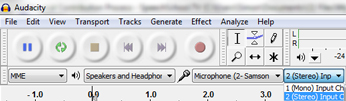 Set the project rate (bottom left corner of screen) to 48000 Hz as show below:  Click the red button [●] at top when ready to begin recording. Do not stop or save the file until you have COMPLETED Tests A & B below: TEST A: PRONUNCIATION & DICTION ► Please tell us briefly why you are doing your SpeechSchool.TV program and what your language background is. ► Now read the following lines directly into the microphone:
Do not stop recording, move onto Test B below: TEST B: IMPROMPTU SPEAKING ► Accent Program learners do this test below: Select ONE of the following topics and give a short talk about it (1 to 2 minutes) directly into the microphone (without prior preparation): ● The most interesting thing that has happened to you this week ● What you would like to do this coming weekend ● A challenge you have overcome this week ● The happiest moment you have experienced this week ► Master Communicator learners do this test below: Give a short talk (1 to 2 minutes) directly into the microphone and using techniques as learned in the Master Communicator program on: ● A subject or experience that has effected or impacted upon any aspect of your life recently. You may now stop [□] the recording STEP 4: EXPORT THE RECORDING Go to File > Export... (top left corner of screen) Export file as a MP2 file under your name, eg. JamesYang as shown below: 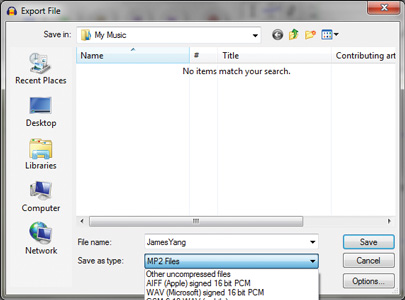 (Select where you would like the file to be saved on your hard drive, as this is the copy of the assessment for your records) STEP 5: SEND US THE RECORDING Click on the 'SEND ASSESSMENT' button below to email us your recording. Attach the recorded file (eg. JamesYang) to your email from the saved location in Step 3.  If an alert or Windows security box pops up click 'Allow'
 Please
click here once your email (with attachment) has been sent Please
click here once your email (with attachment) has been sent |
 FREE pro recording software  Voice Assessment by Speech Teacher  Graded Assessment & Speech Report 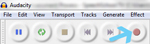 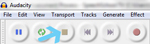 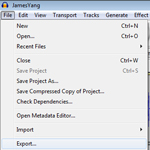   Send your recording to: assessments @ speechschool.tv |





Best viewed in Internet Explorer 8+ at a minimum resolution of 1024x768
with broadband connection.
A Massey University e-centre business. Presenters hold
certification from Trinity College London.
The e-centre logo is a trademark of the e-centre limited.
Copyright Adzet Ltd T/A SpeechSchool.TV. All rights
reserved.
TERMS
& CONDITIONS